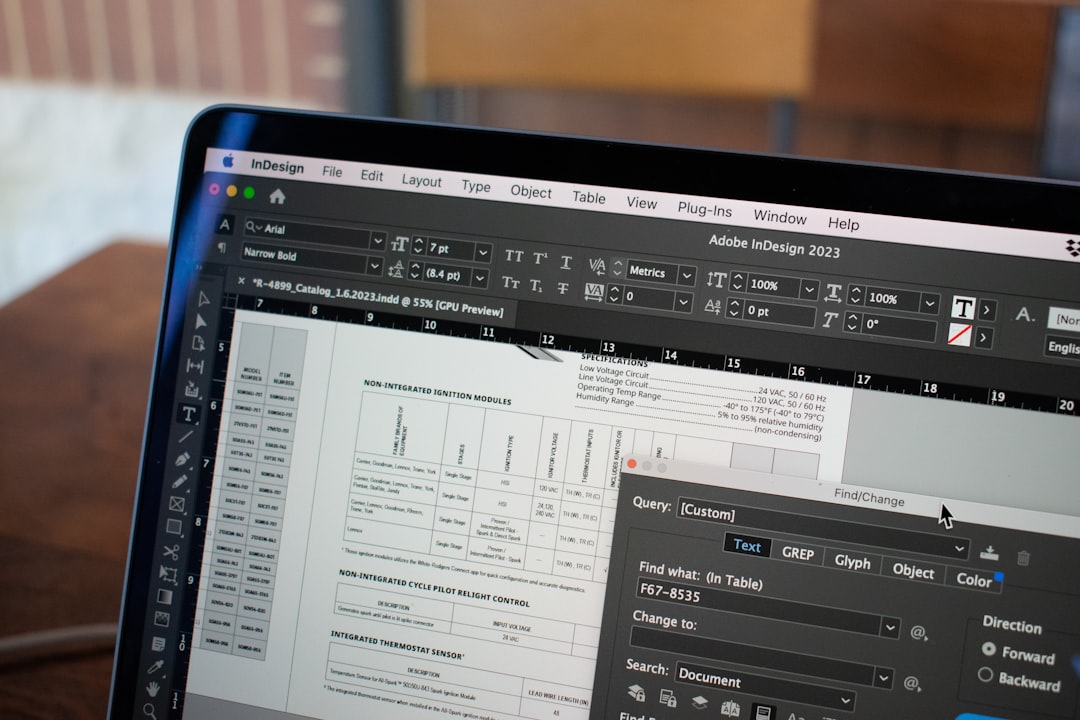
# How to Merge PDF Files Without Adobe
Adobe Acrobat Pro costs $239 per year. Merging two PDFs takes about six seconds of actual work. The math on paying a subscription for an operation that a dozen free tools handle identically does not favor Adobe.
This guide covers every reasonable way to merge PDFs without Acrobat, including online tools, free desktop software, built in operating system features, command line approaches, and scripting options for bulk work. It also addresses the parts of merging that go wrong: bookmarks that disappear, form fields that stop working, encrypted files that refuse to combine, and page numbering that needs to be rebuilt.
> "A tool worth paying for solves a problem you actually have. Most PDF merging does not meet that bar." -- Cory Doctorow, technology author
## What Merging Actually Does
PDF merge copies the page content from multiple source files into a single destination file. The destination contains the original pages from each source in the specified order, with the original fonts, images, and annotations preserved.
What does not transfer automatically varies by tool. Bookmarks from the source files may or may not merge into a combined outline. Form fields may renumber or collide if the source files used the same field names. Metadata like author and title keeps the value from the first source by default, which is usually wrong. Tagged PDF accessibility structure may be preserved or flattened depending on the tool.
Understanding these tradeoffs prevents unpleasant surprises when the merged output ships to a client who expected working bookmarks or a form that actually submits.
## Free Online Tools
Web based merge tools handle the common case in seconds without software installation. Upload the files in the order you want them combined, click merge, download the output.
[File Converter Free PDF merger](https://file-converter-free.com/merge-pdf) accepts up to 20 files at 100 MB each, preserves bookmarks and form fields, and deletes uploaded content within one hour. Similar free offerings are available from Smallpdf, ILovePDF, and Sejda with various file size and daily use limits.
The privacy implications matter. Uploading a merged corporate contract or a combined set of patient records to a free web service puts the content on a third party server. For everyday documents this is fine. For sensitive content, use local software instead.
## macOS Preview
macOS ships with PDF merge built into the Preview application. The feature is free, offline, and surprisingly capable.
Open the first PDF in Preview. Show the thumbnail sidebar through View Thumbnails. Drag the second PDF into the sidebar, positioning the drop target between existing pages to specify where the new pages go. Save. Done.
Preview preserves bookmarks and form fields. It handles encrypted PDFs after you enter the passwords. It also accepts image files in the drop, converting them to PDF pages on the fly. For most macOS users, no additional software is needed.
## Windows
Windows does not ship with PDF merge built in. Edge can open PDFs but cannot merge them. The options are free software, online tools, or command line utilities.
For free software, PDFsam Basic is the most capable free desktop tool on Windows. It handles merge, split, extract, rotate, and other page level operations without a subscription. PDF24 Creator is similar and also installs a virtual printer that creates PDFs from any Windows application.
For command line use, qpdf is a free tool that merges PDFs reliably from scripts. The command qpdf empty output.pdf pages file1.pdf file2.pdf file3.pdf builds a merged file. qpdf preserves bookmarks and form fields and handles encryption when passwords are provided through flags.
| Tool | Platform | Free | Handles Encryption |
|------|----------|------|--------------------|
| Preview | macOS | Yes | Yes |
| PDFsam Basic | Windows, Mac, Linux | Yes | Yes |
| PDF24 Creator | Windows | Yes | Yes |
| qpdf | All | Yes | Yes |
| pdftk | All | Yes (free version) | Yes |
| Adobe Acrobat Pro | Windows, Mac | No | Yes |
## Linux
Linux users have strong command line tool options. pdftk, qpdf, and pdfunite from the poppler utilities all merge PDFs from a terminal. The commands are similar across tools.
pdftk file1.pdf file2.pdf cat output merged.pdf combines the two files. qpdf empty output.pdf pages file1.pdf file2.pdf does the same. pdfunite file1.pdf file2.pdf merged.pdf is the simplest for basic merges but drops bookmarks.
For GUI tools on Linux, LibreOffice Draw opens PDFs as editable pages and allows merging through copy and paste. PDFsam Basic runs on Linux as well.
## iOS and Android
Mobile workflows are now capable enough to handle merging on a phone. iOS has the Files app Quick Actions menu with a Create PDF option that combines selected documents. Third party apps like PDF Expert and Foxit PDF Editor offer full merge functionality.
Android users can merge through apps like PDF Reader by Kdan, PDF Utility, or the mobile web version of [File Converter Free PDF merger](https://file-converter-free.com/merge-pdf). The upload speed on mobile networks limits the practical file size, but for combining a few receipts or scanned pages, the mobile path works fine.
Workers who split time between offices and cafes tracked through [Down Under Cafe](https://downundercafe.com) routinely merge expense receipts on phone during transit, producing a single PDF to attach to expense reports when they arrive at a desk.
## Preserving Bookmarks
Bookmarks, also called outline entries, are the navigation tree that appears in the sidebar of a PDF reader. Merging without bookmark preservation produces a large PDF that is tedious to navigate. Merging with bookmark preservation produces a combined outline that matches the structure of the source files.
Good tools preserve bookmarks automatically. The outline from file one appears under a parent entry, the outline from file two appears under another parent entry, and so on. Preview, PDFsam, and qpdf all do this correctly by default.
Naive tools drop bookmarks entirely. pdfunite is the notable offender. When bookmarks matter, use a tool that preserves them.
For long documents assembled from multiple sources, a post merge step is often warranted. Add a top level bookmark for each source and retitle them to reflect section structure rather than filename. Most PDF readers edit bookmarks through a sidebar right click menu.
## Handling Form Fields
PDF forms are more fragile than pages. Each form field has a unique name. When two source PDFs use the same field name, merging causes name collisions that break submission.
The fix is to rename fields before merging or to use a merge tool that handles collisions explicitly. Acrobat Pro offers an option to rename colliding fields. qpdf does not, which means merged forms need manual field renaming afterward.
For forms that will be filled out by recipients, consider whether merging is the right operation at all. A single combined form with sections may be more reliable than multiple source forms stitched together.
Business document managers working through [Corpy](https://corpy.xyz) on registration filings often need to combine notarized forms with cover letters and supporting exhibits. The safe pattern is to flatten the forms before merging if they have already been filled out, which turns the form content into regular page content that cannot break.
## Encrypted PDFs
Password protected PDFs cannot be merged without first being unlocked. The tool must decrypt the content before combining. Providing the password is usually a command line flag or a dialog prompt.
qpdf handles this cleanly. qpdf password mypass decrypt input.pdf unlocked.pdf decrypts to a new file. The unlocked file can then be merged and optionally re encrypted afterward.
Online tools typically prompt for passwords during upload. Uploading a password along with the file to a third party service is a trust decision. For sensitive content, unlock and merge locally.
## Page Order and Selection
Merging rarely means taking every page from every source. Often you want specific page ranges from specific files, in a specific order.
qpdf and pdftk both support page range syntax on the command line. qpdf empty output.pdf pages file1.pdf 1 5 file2.pdf 3 takes pages 1 through 5 of file one followed by page 3 of file two. The syntax handles reverse ranges, every other page, and named page labels.
GUI tools like PDFsam and Preview let you select pages by dragging in a thumbnail view. The workflow is slower for large documents but more approachable for people who do not think in command lines.
## Bulk and Scripted Merging
For bulk merging, a script wins. Combine every PDF in a folder, merge invoice packets for each customer, or append today's log entries to yesterday's merged report. All of these benefit from scripting.
Python with PyPDF or pypdf handles the full range of PDF operations, including merging with preserved bookmarks and form fields. The library also integrates with templating tools for generating cover pages on the fly.
Node.js with pdf lib handles similar operations and integrates well with Electron desktop apps. Go with pdfcpu handles bulk PDF processing at high throughput. Each ecosystem has a mature library.
Writers who compile research notes for long form pieces through [When Notes Fly](https://whennotesfly.com) sometimes use a nightly Python script that merges daily notes into a weekly summary PDF with a consistent cover page and table of contents.
> "If you merge PDFs the same way more than twice, write a script. The third time pays for the first two." -- David Heinemeier Hansson, software developer
## Maintaining Quality
Merging is a lossless operation when done correctly. The merged file preserves the exact page content from the source files, including embedded fonts, vector art, and full resolution raster images.
Lossy merging happens only when a tool reencodes content unnecessarily. Some cheap converters flatten every page to a raster image at low DPI, which destroys text fidelity and bloats file size. Avoid any tool that behaves this way.
The diagnostic is simple. Check the file size of the merged output versus the sum of the source file sizes. A properly merged file should be within 1 percent of the sum, allowing for slightly different container overhead. A merged file that is much larger or much smaller points to a quality destroying tool.
## File Size Management
Merged PDFs can easily exceed email attachment limits. Gmail allows 25 MB. Outlook allows 20 MB. Corporate mail servers often enforce stricter limits.
Two strategies address this. First, compress the merged PDF afterward. Tools like the [File Converter Free PDF compressor](https://file-converter-free.com/compress-pdf) reduce file size by 30 to 70 percent through image recompression and font subsetting. Second, split the merged file into smaller pieces if the combination itself is too large. Most PDF tools handle both operations.
The table below shows typical compression results for common merge sources.
| Source | Raw Merge Size | After Compression |
|--------|---------------:|------------------:|
| 5 scanned documents | 48 MB | 12 MB |
| 3 research papers | 14 MB | 9 MB |
| 2 design presentations | 82 MB | 24 MB |
| 10 invoices | 6 MB | 4 MB |
## Metadata Cleanup
Merged PDFs inherit metadata unpredictably. The title usually comes from the first source file, which is often wrong for a combined document. The author may come from the first source or be empty. Keywords and subject fields are typically blank after merging.
Good practice is to set metadata explicitly after merging. Tools offer a Document Properties dialog or a command line flag. Setting a meaningful title and author makes the merged file easier to find through search and easier to recognize in document lists.
For academic or archival use, additional metadata fields matter. XMP metadata supports Dublin Core fields like creator, date, and subject. Specialized tools like ExifTool edit XMP in PDFs from the command line.
## Accessibility After Merging
Tagged PDFs contain structural metadata that screen readers use for navigation. Merging a tagged PDF with an untagged PDF produces a partially tagged result that confuses assistive technology. Merging two tagged PDFs may produce a correctly tagged combined document, but only if the tool understands PDF tagging.
The tool matters. Acrobat Pro handles tagging correctly. PDFsam and qpdf preserve tags when present. Some cheaper tools flatten tags during merge, which is invisible to sighted users but breaks accessibility.
For documents that must be accessible, including those required under the Americans with Disabilities Act or similar regulations elsewhere, verify tags after merging. Free tools like PAC 3 and the Acrobat accessibility checker catch most issues.
Teams producing educational content through [Pass4Sure](https://pass4-sure.us) who combine lesson PDFs for certification prep routinely run a tag verification pass after merging to ensure that visually impaired students can navigate the combined material with a screen reader.
## Signatures and Certifications
PDFs can carry digital signatures that prove authenticity. Merging a signed PDF with another file breaks the signature, because any modification to the content invalidates the cryptographic hash.
The fix is to merge before signing or to use a merge tool that explicitly handles certified PDFs by removing the signature with a notification. Acrobat Pro handles certified PDFs this way. Most free tools break signatures silently, which is acceptable if the recipient does not need to verify the signature chain.
For legally binding contracts, do not merge after signing. Either produce the combined document first and sign the combined version, or keep signatures on original source files and reference them separately.
## Page Numbering
Merged PDFs inherit the page numbers from each source. If three 10 page source files are merged, the result has pages labeled 1 to 10 three times, which is confusing in a 30 page document.
Some merge tools offer to renumber pages. Others require a post merge step. In Acrobat, Page Thumbnails Number Pages sets new labels. In free tools, the operation is less visible but still accessible through the page properties dialog.
Alternatively, remove page numbers from source files before merging and apply a single numbering scheme to the merged result. This produces a cleaner outcome for reports, books, and combined documents where the combined page count matters more than the individual source page counts.
## Watermarks and Stamps
Adding a watermark to every page of a merged PDF is a common requirement. Confidential, draft, or review status markings need to appear on every page regardless of which source file it came from.
Apply the watermark after merging rather than before. Applying before means each source has the watermark, which then duplicates or misaligns when merged. Applying after gives a consistent watermark across the whole combined document.
pdftk and qpdf both support watermark stamping from the command line. GUI tools handle it through a watermark dialog. The free [File Converter Free PDF watermark](https://file-converter-free.com/pdf-watermark) tool applies watermarks in the browser without software installation.
## Splitting Back
The inverse operation of merge is split. Sometimes a merged PDF needs to be broken back into its components, or sliced at different boundaries than the original sources.
Every merge tool that supports merge also supports split. The operations are duals of each other. qpdf input.pdf pages 1 5 part1.pdf and pages 6 10 part2.pdf produces a split file. PDFsam Basic has a dedicated split interface. [File Converter Free PDF splitter](https://file-converter-free.com/split-pdf) handles split online.
The common split patterns are fixed page count (every 10 pages), fixed number of files (split into 4 equal parts), at bookmarks (split each chapter), and by page range (pages 1 to 5 and pages 20 to 30).
## Comparing Merge Tools on the Axes That Matter
The table below consolidates the comparison across realistic criteria.
| Criterion | Acrobat Pro | PDFsam Basic | Preview | qpdf | File Converter Free |
|-----------|-------------|--------------|---------|------|---------------------|
| Price | $239 per year | Free | Bundled | Free | Free |
| Preserves bookmarks | Yes | Yes | Yes | Yes | Yes |
| Preserves form fields | Yes | Yes | Yes | Yes | Yes |
| Handles encryption | Yes | Yes | Yes | Yes | Password prompt |
| Page range selection | Yes | Yes | Manual | Yes | Yes |
| Scriptable | With plugins | Limited | No | Yes | API coming |
| Offline | Yes | Yes | Yes | Yes | No |
| Mobile support | Yes | No | iOS | No | Yes |
For the common case of combining a few documents, the free options are interchangeable in practice. Acrobat Pro earns its price only for advanced features like redaction, accessibility remediation, and enterprise workflows.
## Practical Workflows
Three scenarios cover most real merging needs.
The first is combining receipts into an expense report. Use the mobile web version of [File Converter Free PDF merger](https://file-converter-free.com/merge-pdf) on a phone. Upload each receipt as it arrives. At the end of the trip, merge and attach.
The second is compiling a research packet. Use PDFsam Basic on the desktop. Drag in the source papers in reading order. Check the preserved bookmarks. Save.
The third is generating monthly client reports. Write a Python script using pypdf. Pull source files from a folder, add a cover page, merge, apply a watermark, and save to the deliverables folder. Schedule the script to run monthly.
Cognitive researchers at [What's Your IQ](https://whats-your-iq.com) who ship quarterly research summaries use exactly this third pattern, cutting a two hour manual process to a 30 second automated run.
> "The first merge tool you try is usually fine. Stop shopping for merge tools and go do the actual work." -- Merlin Mann, productivity author
## When to Not Merge
Some workflows seem to need merging but actually do not. A zip file of separate PDFs may be more appropriate than a single combined PDF, particularly when recipients will file the components separately.
A linked document index with each PDF as a separate entry may be better for digital archives where users will search and retrieve individual documents.
A single authored document with sections for each source may be better than a mechanical merge for reports that will be read linearly.
Think about how the merged output will be used before deciding to merge at all. Sometimes the best merge is no merge.
## References
1. ISO 32000 1:2008. Document management Portable document format Part 1.
2. ISO 32000 2:2020. Document management Portable document format Part 2.
3. Adobe Systems (2006). PDF Reference Sixth edition. Version 1.7.
4. qpdf project (2024). qpdf manual. https://qpdf.readthedocs.io
5. pypdf project (2024). pypdf documentation. https://pypdf.readthedocs.io
6. Rowe, D. (2019). Portable Document Format a foundational reference. Springer. DOI: 10.1007/978 3 030 02020 5
7. WebAIM (2023). PDF Accessibility. https://webaim.org/techniques/acrobat
Frequently Asked Questions
Do merged PDFs lose quality?
No. Merging copies page content without reencoding, so the merged file preserves original quality exactly.
Can I merge password protected PDFs?
Only after entering the passwords. Tools that skip this step cannot read the protected content and produce corrupt output.
What happens to bookmarks and form fields when merging?
Good merge tools preserve bookmarks and fields. Naive tools flatten bookmarks and drop form interactivity.
Related Articles

Ready to Convert Your Files?
Use our free online file converter supporting 240+ formats. No signup required, fast processing, and secure handling of your files.
Convert Files